Best AI Background Remover Tools in 2026: 7 Tools Ranked
Removing a background from a photo is now extremely easy, thanks to the rise of one-click AI background remover tools.
The challenge now is finding the right one to use with the multitude of tools in the market.
Some are built for speed, giving you a transparent image in seconds. Others do a better job with difficult edges, like loose hair, transparent objects, or subjects against busy backgrounds. And some are more useful for specific workflows, whether that's preparing hundreds of product photos or turning a cutout into a social media graphic.
Here are seven of the best AI background removers in 2026, ranked by their features, ease of use, editing capabilities, and what they're actually good for.
The list at a glance
- Design.com: Best overall for clean background removal and creating branded marketing materials from the edited image.
- Photoroom: Best for e-commerce product photos and batch background removal.
- Pixelcut: Best for mobile background removal and editing on the go.
- Remove.bg: Best for quick background removal with AI-generated replacement backgrounds.
- Clipping Magic: Best for advanced editing and manually refining difficult cutouts.
- Picsart: Best for creative background replacements.
- Adobe Express: Best for background removal within Adobe's wider design ecosystem.
How this list is ranked
A good AI background remover should get the job done without requiring you to spend another ten minutes fixing the result. That means looking at how accurately it separates the subject, how clean the edges are, how quickly it works, and whether you can correct mistakes when the AI misses something.
The other consideration is what you need the image for. An online seller preparing 100 product photos has different requirements from someone needing the cutout image for an Instagram post.
The tools below are ranked with those differences in mind, rather than treating every background remover as if it does the same job.
1. Design.com: Best overall
Design.com is the strongest all-around option because it handles the background removal itself and gives you somewhere useful to take the image afterward.
How it works is simple: upload a photo to its AI background remover, and the tool automatically separates the subject from the background.
The quality of the cutout is great. Design.com can handle difficult photos, even those with loose hair and busy surroundings, without leaving jaded edges or accidentally erasing crucial parts of the subject. This also means less cleanup for the user afterwards.
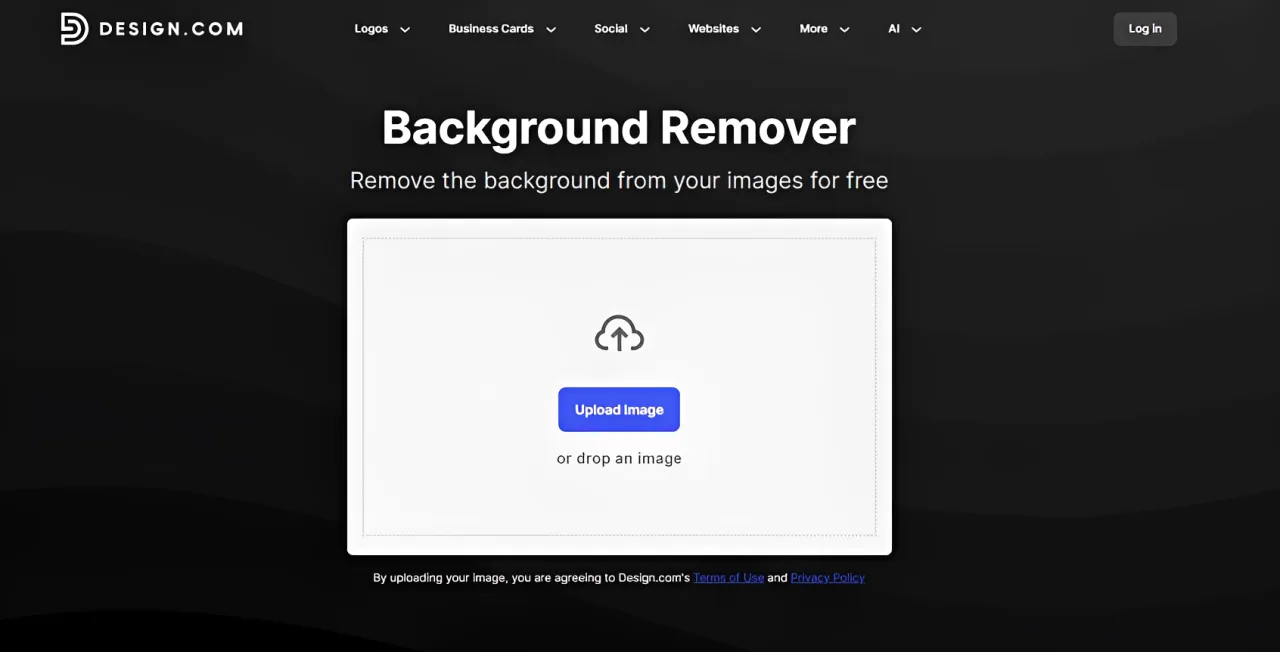
Another advantage is that background removal isn't a separate job from the rest of your design work. Design.com also has tools for making logo design, social media posts, flyers, posters, business cards, presentations, and websites. You can take an edited image into those designs without having to move between several unrelated platforms.
That makes Design.com a particularly good fit for small businesses and marketers who regularly create their own content. You get a background remover for the photo itself, plus the tools to turn that photo into something ready to publish.
Verdict: Best overall for accurate background removal, including difficult subjects, and for businesses that want to use their edited images across branded marketing materials.
2. Photoroom: Best for e-commerce
Photoroom is built around product photography. Upload a photo of an item, and the AI removes the original background so you can replace it with a clean studio backdrop, a solid color, or a real-life scene.
Its useful trick is batch editing. Instead of removing the background from every image individually, you can process multiple product photos and apply similar edits across them. That's a big time saver when you're preparing an entire catalog for an online store.
Photoroom also has AI tools for beautifying the image. You can use them to adjust the brightness, lighting, resolution, color, or shadow. There are also tools for automatically resizing the photo for the requirements of various sales channels.
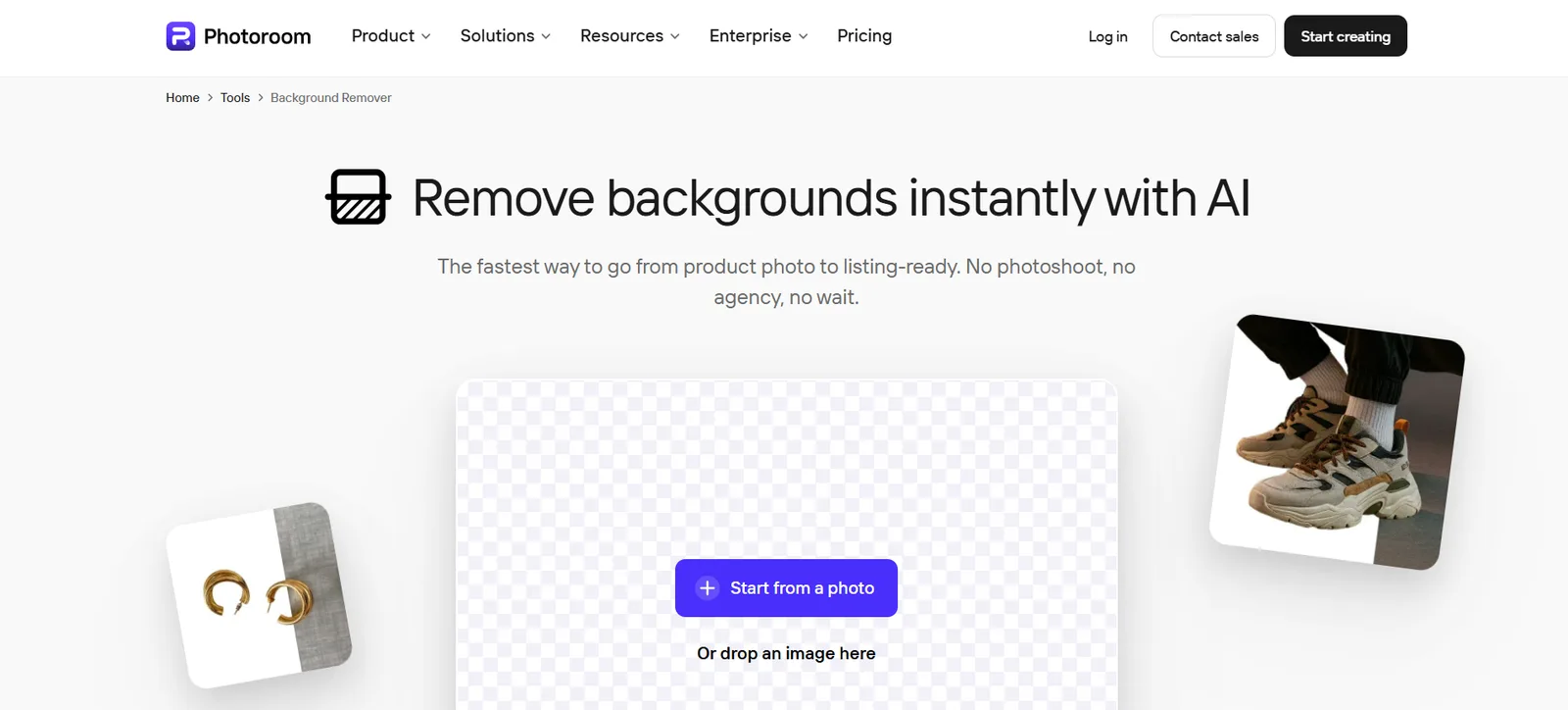
The tradeoff is its focus. Photoroom can handle other types of photos solidly, but most of its strongest features are aimed at online sellers. If you mainly need portraits, graphics, or general marketing designs, you can’t maximize its strong points.
Verdict: Best for e-commerce sellers who need clean and polished product photos.
3. Pixelcut: Best for mobile editing
Pixelcut is a good choice if most of your photos are already on your phone or if you prefer to edit while on the go, since they have a solid mobile app.
The process is simple. Upload a photo, have the AI remove the background, and choose whether to keep the background transparent or replace it, then export. Users can also use their Refine feature to brush any edge by hand.
Pixelcut’s advantage is convenience. If you're photographing products for an online shop or preparing content for social media, you can take the picture and edit it on the same device. You don't need to wait until you're back at your desk to get the image ready.
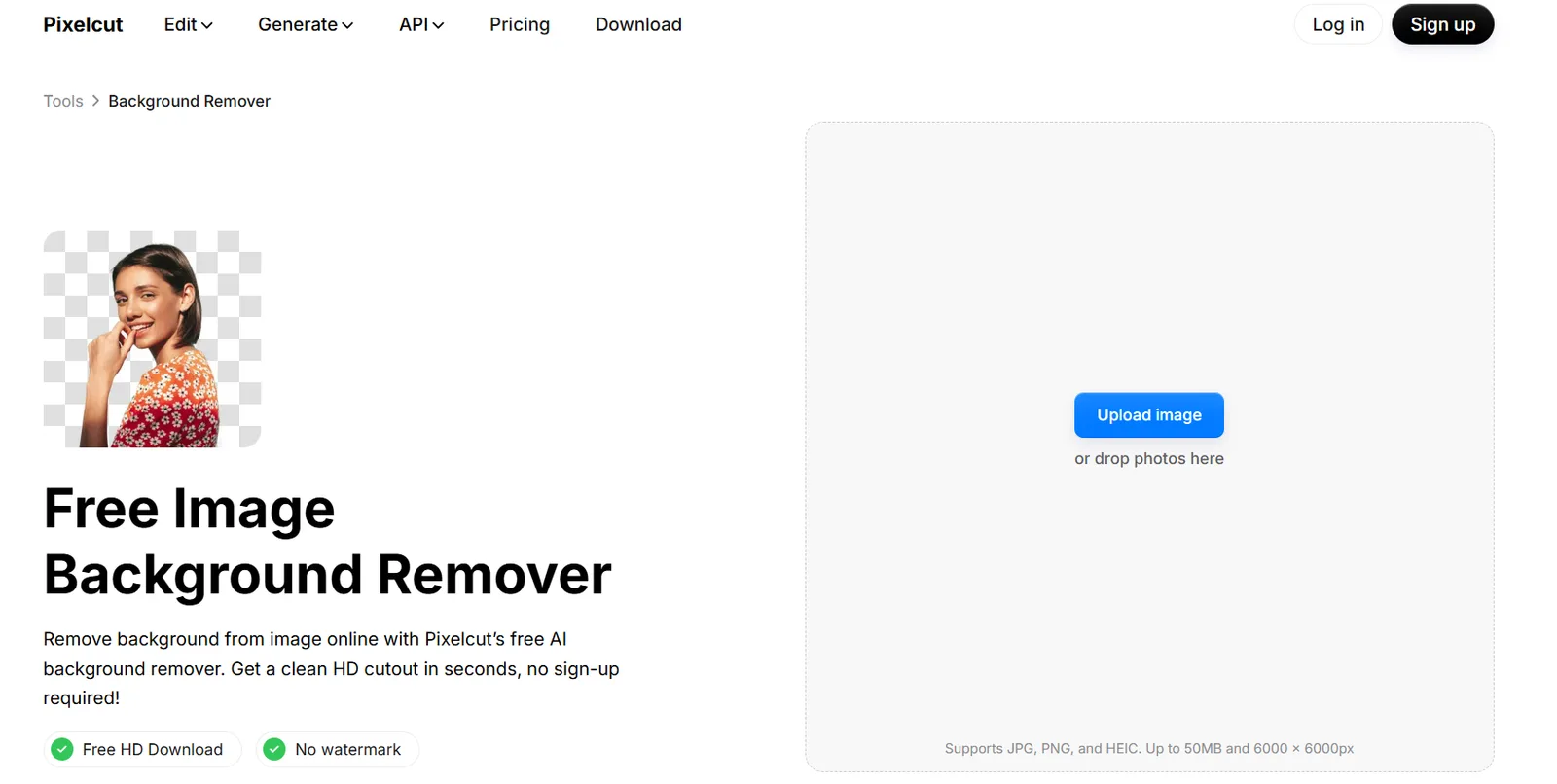
Accuracy can vary depending on your photo. While their outputs are generally good, some images with heavy fringe or flyaway hair can look a bit rough.
Verdict: Best for creators or sellers who work primarily on mobile.
4. Remove.bg: Best for AI-generated backgrounds
remove.bg is one of the simplest options here. Upload a photo, and the AI automatically identifies the subject and removes the background. There's no complicated setup or editing process if all you need is a transparent image.
What makes it more interesting is its AI background generator. Instead of stopping at a transparent cutout, you can create a completely new background for the subject. That could be a studio setting for a product, a different environment for a portrait, or a scene that better fits the image you're making.
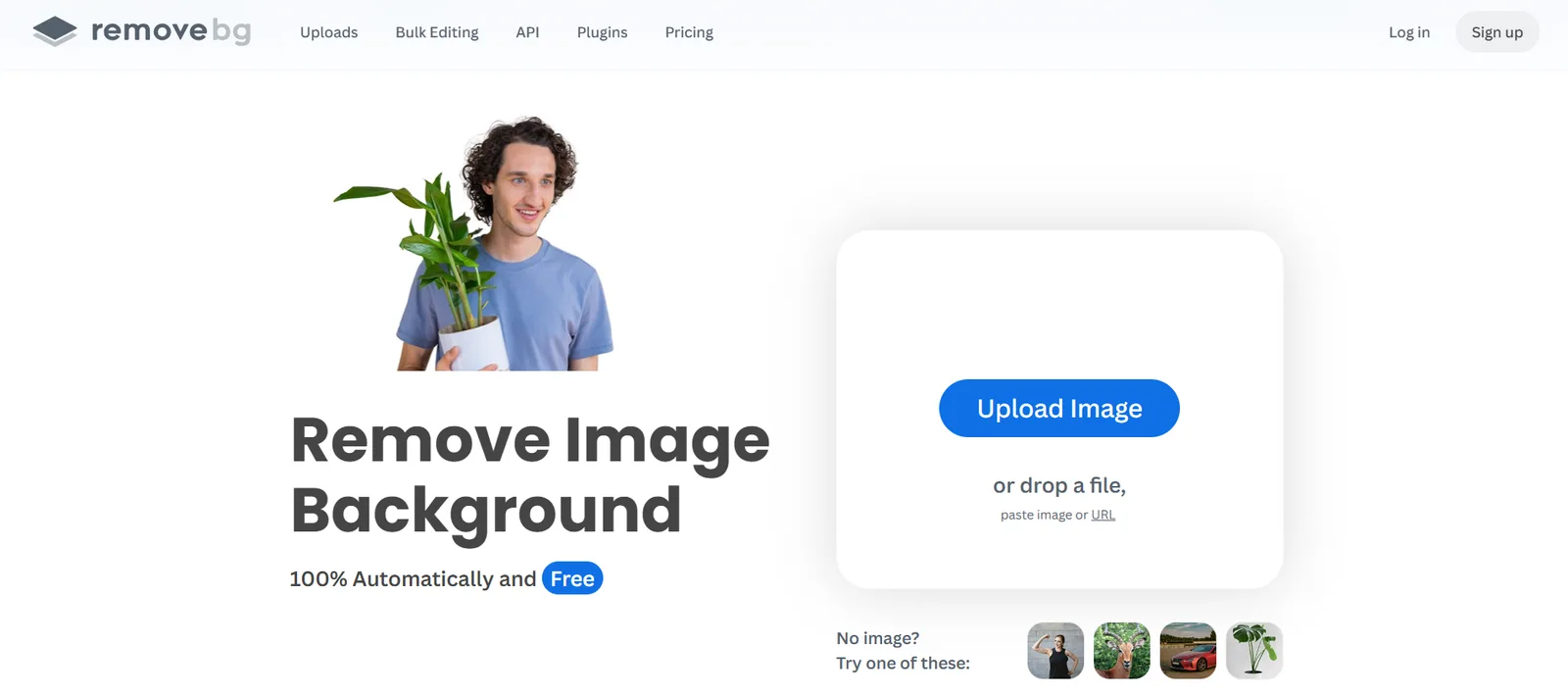
The main thing to watch is how naturally the new background fits. AI-generated scenes don't always get the lighting, shadows, or perspective right, so the finished image may still need some adjustments.
Verdict: Best for quick background removal with the option to generate new scenes.
5. Clipping Magic: Best for advanced editing
Clipping Magic gives you more control over the background removal process. It starts with an automatic AI cutout, but unlike simpler tools, it also lets you manually correct the areas the AI gets wrong.
The editor includes Keep and Remove tools for marking which parts of the photo should stay or disappear. There's also a dedicated Hair tool for fine details and a Scalpel tool for making precise cuts around difficult edges. There are also tools like Color Cast Cleaner, Halo Scrubber, Edge Guard – all of which can help you fine-tune the photo.
These controls matter when you're dealing with complicated subjects. A chair with thin legs, a person with loose hair, or an object with small gaps can confuse automatic background removers. Clipping Magic lets you guide the cutout rather than repeatedly running the AI and hoping for a better result.
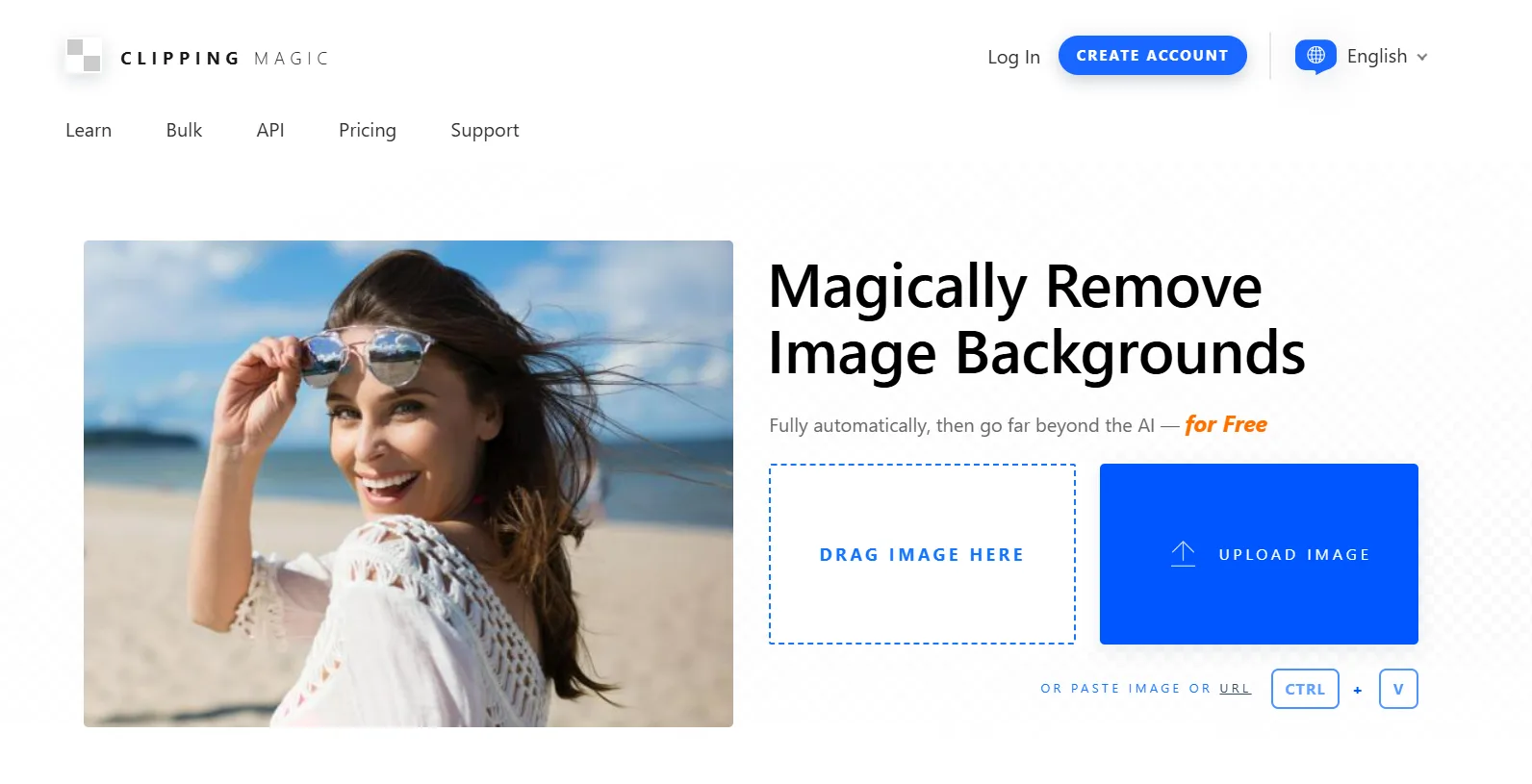
The downside is that it takes more effort. If the automatic removal already looks good, you probably won't need most of the editing controls. But when a cutout needs detailed corrections, having those tools available can save you from opening another image editor.
Verdict: Best for users who need more precise control over their cutouts.
6. Picsart: Best for creative background replacements
Picsart is a good option when you want to experiment with how the image looks after removing the original background.
You can choose a plain white background, a solid color, a gradient, or a blurred background. Picsart also has background templates, AI background generator, and other design elements for creating more elaborate images.
That range is the main selling point. You can try different looks using the same subject without having to take another photo. Picsart also includes other photo editing tools, making it useful for portraits, collages, social media graphics, and creative projects.
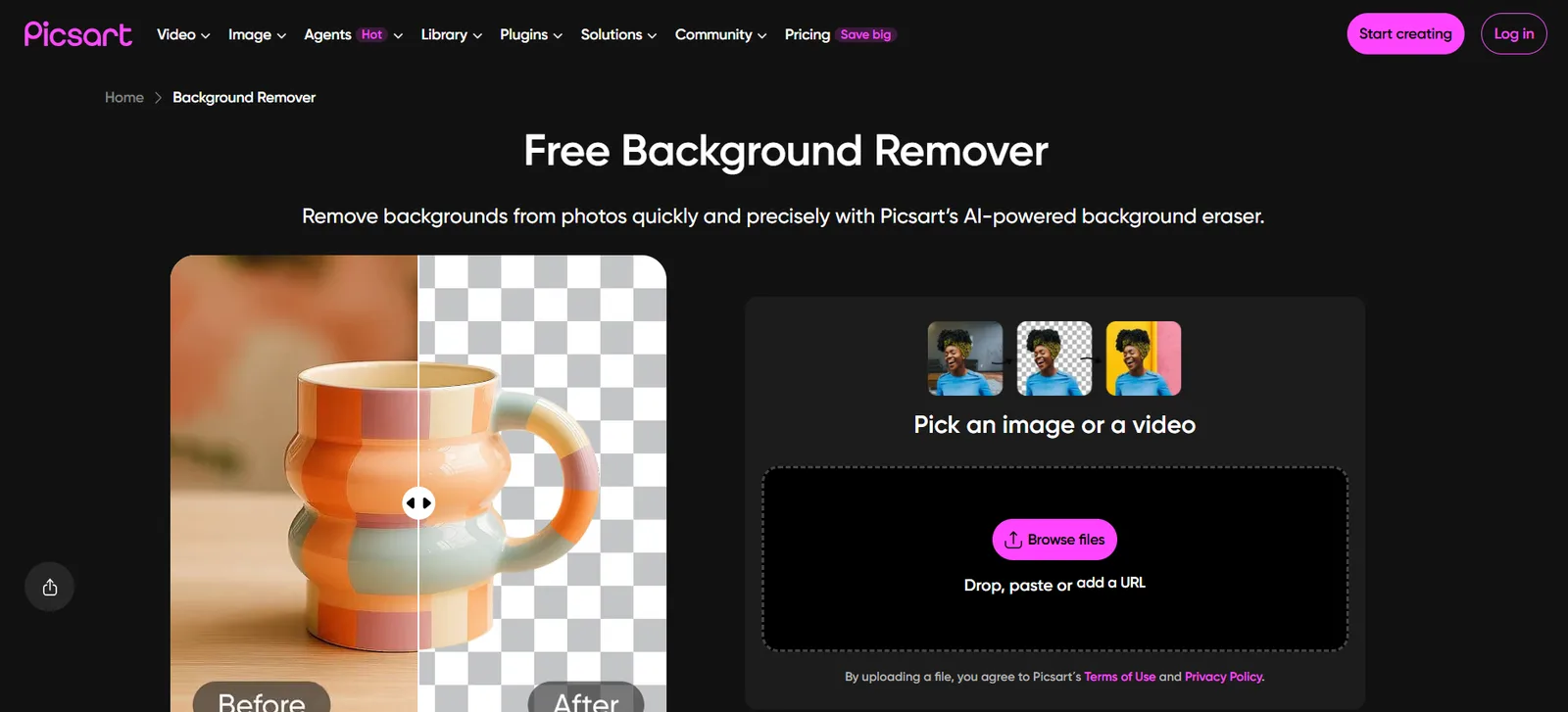
The downside though is that these features may be irrelevant if you're only looking for a quick transparent cutout. Picsart background remover is also not free – you’ll have to be subscribed to their plan. Though you’ll be able to access it for a seven-day free trial. But after that, you’ll need to pay.
Verdict: Best for users who want to do more with the image they cut out.
7. Adobe Firefly: Best for Adobe Users
Adobe Firefly makes background removal straightforward. Upload a photo, let the AI remove the background, and download the result as a transparent PNG. You can also open the image in the Firefly editor to keep working on it.
The main advantage is its connection to Adobe's wider creative ecosystem. Once the background is removed, you can use Firefly to make edits, use Adobe Fonts or their library of stock images, or head on to Adobe Express for their templates. It fits naturally into workflows that already use other Adobe applications.
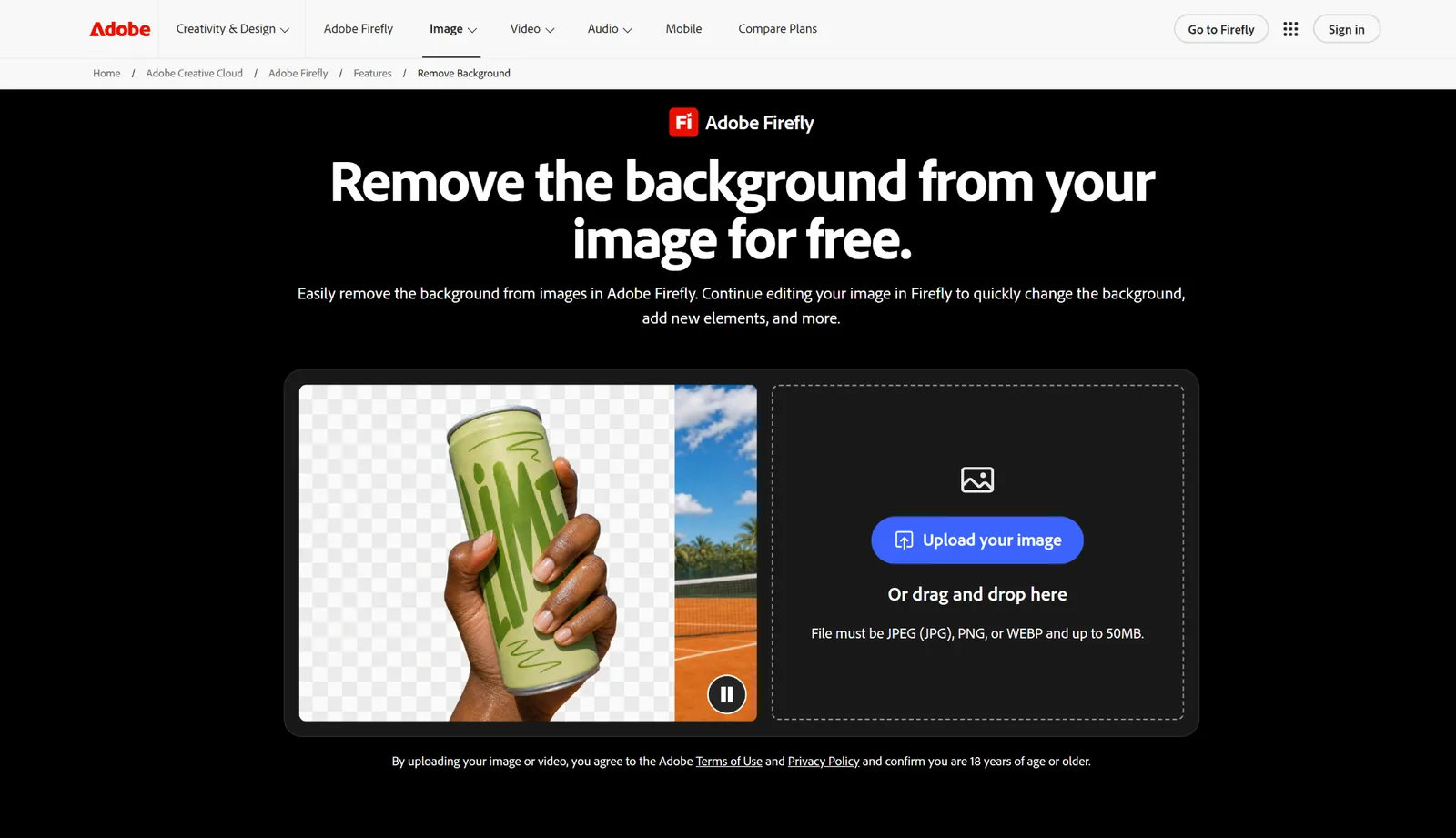
That said, Adobe Express isn't primarily a specialist background removal tool. The quality of the edges can be a hit or miss. Its appeal is having background removal available alongside other familiar creative features. For users who already work with Adobe, that's often enough.
Verdict: Best for users who already use Adobe's design tools and want a convenient background remover within the same creative workflow.
What to look for in an AI background remover
Not every background remover needs to have dozens of editing features. The right choice depends on the kind of images you're working with and how much control you need.
Here are the main things worth checking before choosing one:
- Background removal accuracy: Look at how well the tool preserves small details, especially hair, jewelry filigree, fur, fuzzy clothing, thin objects, and complicated edges. A fast cutout isn't much use if you have to manually repair half the image.
- Speed: Most AI background removers work in seconds. But can it handle multiple photos? And if it does, does it take much longer or is the speed still the same?
- Editing controls: Some tools only offer automatic removal, while others let you restore missing areas or refine the edges manually. Some also offer ways to beautify the image itself.
- Background replacement options: If you want more than a transparent image, check whether the tool supports solid colors, templates, or AI-generated backgrounds.
- Additional design tools: Consider what you'll do with the image afterward. An integrated editor can save time if you regularly turn cutouts into advertisements, social posts, or other marketing materials.
- Export options and pricing: Check whether transparent PNG downloads, high-resolution exports, or batch features are included in the free plan. Some tools let you remove a background for free but restrict the final download.
The best way to compare a few options is to upload the same photo to each one. Choose an image with a moderately complicated background rather than an easy studio shot. You'll quickly see which tool preserves the subject properly and which one needs more work.
Which AI background remover should you choose?
The easiest way to narrow down the list is to think about how often you remove backgrounds and what you need to do with the images afterward.
If you're preparing an entire online catalog, Photoroom's batch tools will be more useful than manually editing each product. If you mainly work from your phone, Pixelcut is the more convenient choice. For images that need careful corrections, Clipping Magic gives you more control.
Remove.bg and Picsart are worth considering if replacing the background is just as important as removing it. Remove.bg focuses on generating new scenes, while Picsart gives you more ready-made visual styles. Adobe Express makes sense if you're already creating designs with Adobe.
For the best overall option, though, Design.com is the strongest pick. It combines background removal for difficult images with a broader set of branding and design tools. You can remove an unwanted background and continue creating the marketing material you actually need, without relying on several separate applications.
Frequently Asked Questions
Can AI remove a background without cutting off hair or other details?
Yes, but not every remover handles fine edges equally well. Loose hair, fur, and thin objects are harder to separate, especially when the background has similar colors. A good AI remover should preserve those details without leaving a visible outline. If the result isn't clean, use a tool with manual edge correction rather than repeatedly uploading the same image.
Why does my image have a white outline after removing the background?
That's usually leftover pixels from the original background. It's especially noticeable around hair, clothing, and curved edges when you place the cutout against a darker color. Use an edge refinement or cleanup tool to remove the halo, then preview the image against both light and dark backgrounds before exporting.
Can I replace the background instead of making it transparent?
Yes. Most AI background removers let you add a solid color or another image after removing the original. Some go further: Picsart offers gradients, blurred backgrounds, and templates, while remove.bg can generate a completely new scene. Just check that the lighting and shadows match the subject.
Can I use AI background removers for commercial photos?
Generally, yes, but check the tool's license and the rights to your original image. Removing a background doesn't give you ownership of a photo you don't have permission to use. If you're adding AI-generated backgrounds or stock elements, check whether those assets are cleared for commercial use too.
What resolution should I download my background-free image at?
Download the highest resolution available, especially if you'll use the image for print, product listings, or large marketing graphics. Choose PNG if you need transparency. Avoid downloading a small image and enlarging it later, since upscaling won't reliably restore missing edge details.
Bottom line
Pick your background remover based on what you need from the finished image, not just how quickly the background disappears.
Photoroom makes sense for large product catalogs, Clipping Magic gives you more control over difficult edges, and Picsart is useful when you want to experiment with different backgrounds.
For the best overall option, Design.com covers more of the job. It handles complicated cutouts, including loose hair and busy backgrounds, and lets you use the result directly in branded marketing materials.
Founder of Motionbox and Gluely. Building tools for creators.